Google Search Console Historical Data: Keep All 16 Months
Google Search Console Deletes Your Data After 16 Months
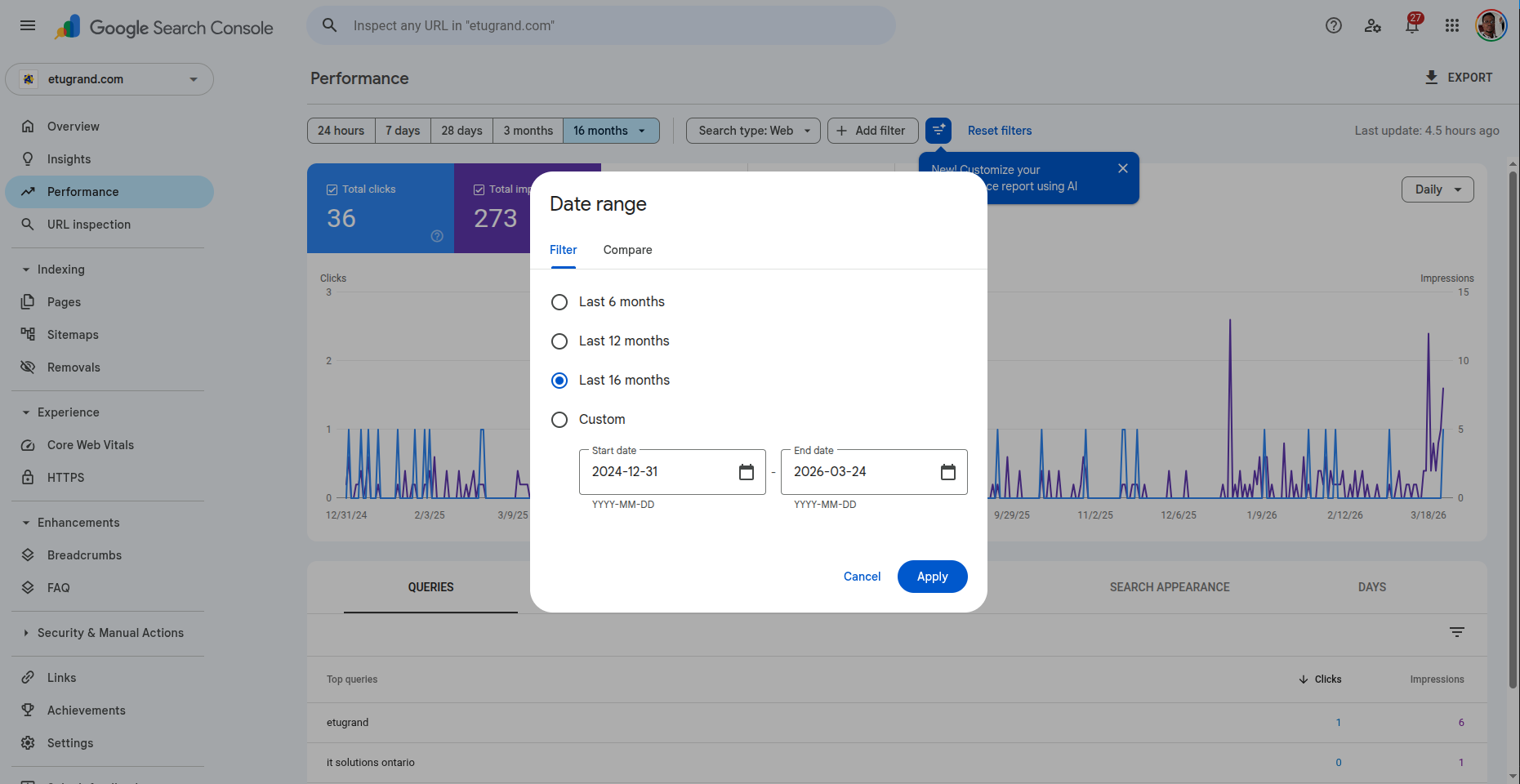
This is the part most people don't realize until it's too late. Google Search Console stores a maximum of 16 months of search performance data. Once a day passes the 16-month window, it's gone — permanently. Google doesn't archive it. There's no way to get it back.
If your site has been live for two years, you've already lost 8 months of data. Every day you wait, another day disappears from the other end.
What GSC Historical Data Actually Includes
For every day in your 16-month window, GSC stores:
- Queries — the exact search terms people typed (or spoke) that triggered your site
- Pages — which of your URLs appeared in search results
- Clicks — how many people chose your result
- Impressions — how many times Google showed your page
- CTR — click-through rate (clicks ÷ impressions)
- Average Position — where you ranked on average
This data is broken down by country and device type (desktop, mobile, tablet). It covers Google Search, Discover, and Google News if your site appears there.
This is the only free source of real ranking and click data directly from Google. Not estimated, not sampled — actual data from Google's own index.
Three Ways to Access Your GSC Data
1. The GSC Web Interface (Limited)
Go to Google Search Console, select your property, and click "Performance." You can set the date range up to 16 months back and export to CSV or Google Sheets.
UI labels can shift over time, but the Performance report remains the place to export click, impression, CTR, and position data.
Limitations:
- Maximum 1,000 rows per export
- You have to manually export regularly to preserve data
- No automated backups — if you forget for a few months, that data is gone
- Filters are limited (can't combine query + page + country easily)
2. The GSC API (Full Access, Technical)
The Search Console API gives programmatic access to your full data set — up to 50,000 rows per day, per search type.
What you can do:
- Pull all 16 months in one batch
- Request data with multiple dimensions (query, page, date, country, device)
- Automate daily exports so you never lose data
- Store it in your own database permanently
The catch: You need to write code, handle OAuth authentication, manage API quotas, and set up a database. For most site owners, this isn't practical.
3. Tools That Connect to GSC (Easiest)
Several tools connect to the GSC API on your behalf and store the data automatically:
| Tool | Historical Data | Free Tier | Auto-Backup |
|---|---|---|---|
| DadSEO | Full 16 months | Yes (1 site) | Yes, every 4 hours |
| Google Looker Studio | 16 months (live query) | Yes | No storage |
| Screaming Frog | Manual export only | No | No |
| Ahrefs/Semrush | Limited GSC integration | No | Partial |
The key difference is whether the tool stores your data or just queries it live. If it only queries live, you still lose data after 16 months.
How to Preserve Your Data Before It Disappears
The simplest approach that costs nothing:
Step 1: Open GSC → Performance → set date range to maximum (16 months)
Step 2: Export → Download as CSV. Do this separately for:
- Queries tab
- Pages tab
- Countries tab
- Devices tab
Step 3: Save these files with today's date. Set a monthly calendar reminder to repeat.
This is manual and limited to 1,000 rows per export, but it's better than losing the data entirely.
The automated approach:
Connect your GSC to a tool that syncs automatically. When you connect DadSEO, it immediately backfills all 16 months of available data and then syncs every 4 hours. The data is stored permanently — even after GSC deletes it from their end.
Why Historical Data Matters for SEO
28 days of data shows you what's happening now. 16 months shows you what's actually going on:
Seasonal patterns. If your traffic drops every July and recovers in September, that's not a problem — it's a pattern. But you can't see it without a full year of data.
Algorithm impact. Google rolls out core updates several times a year. Without historical data, you can't tell whether a traffic drop is from an algorithm change, a seasonal shift, or a technical issue.
Content decay. A page that ranked #3 six months ago might be at #15 now. At 28 days, it looks like it was always at #15. With historical data, you can see the decline and act before it falls off page 2.
Year-over-year growth. Comparing March to February is misleading (different seasonality). Comparing March 2026 to March 2025 tells you if your SEO is actually working.
What to Do With Your Data Once You Have It
Having the data is step one. Knowing what to look for is where the value is.
Quick wins: Find queries where you rank positions 4-10 with high impressions. These are already on page 1 — small improvements can move them into the top 3 where most clicks happen.
Content gaps: Look for queries where you get impressions but have no dedicated page. Google is already showing your site for these terms — create a proper page and you'll likely rank faster than starting from scratch.
Declining pages: Compare the last 3 months to the 3 months before that. Any page where clicks dropped more than 30% needs attention — either the content is outdated, a competitor published something better, or the SERP layout changed.
CTR problems: If a page ranks in the top 3 but has below-average CTR, your title tag or meta description isn't compelling enough. This is one of the highest-ROI fixes in SEO — you already have the ranking, you just need more people to click.
For a deeper dive on reading GSC data strategically, see our guide: Read Google Search Console Like a Strategist.
For complete retention mechanics and official documentation, see our Google Search Console 16-Month Data Retention Guide.
Start Preserving Your Data Today
Every day you wait, another day of historical data falls off the 16-month cliff. Whether you use a manual CSV export or an automated tool, the important thing is to start now.
Connect your GSC to DadSEO — free, read-only, backfills 16 months automatically →
Founder of DadSEO. I build tools that turn SEO data into strategy — not scores. Previously spent years running audits that told me what was broken without telling me what mattered.
Read more about me →Ready to see what your SEO data actually means?
DadSEO connects to Google Search Console and gives you a strategic diagnosis — threats, gaps, and opportunities ranked by impact.
Get Your Free Audit